
Adding Room EQ to JRiver Media Center
1. Instructions for JRiver on Mac
Mac version of the JRiver Media Center doesn't support audio inputs that are necessary for the room measurement, but you can use demo version of Reaper for the measurement. The measurement process is as follows:1.1. Download and install the VST version of the MathAudio Room EQ plug-in.
1.2. Download and install Reaper (demo version is enough). Reaper in necessary for measurement only, so you can uninstall it after the measurement.
1.3. Set Reaper in accordance with the image below.
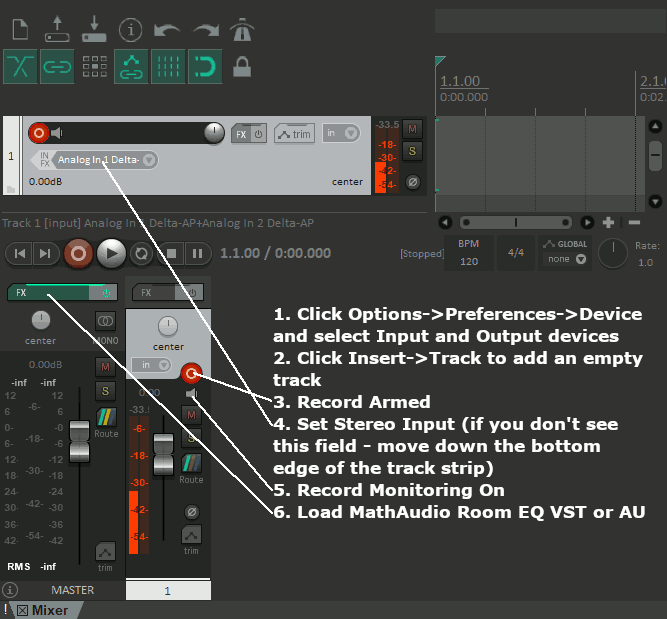
1.4. Make sure that Reaper's indicators show the presence of the mic signal (see figure above).
1.5. Measure the frequency response of your room in accordance with the items 5 and 6 of the Room EQ Help manual. Make no less than 5-20 measurements within the area of possible locations of all listeners. Use the "Save preset" button to save the frequency response as a .snr file.
1.6. Quit Reaper without saving.
1.7. Open JRiver Media Center. Add Room EQ VST to JRiver Media Center at Player > DSP Studio.. > Manage Plug-ins > Add JRiver, VST or Winamp plug-in (then select MathaudioRoomEQ in the left column).
1.8. Click the "Load preset" button in the Room EQ window to load the .snr file.
1.9. Follow instructions 7..16 of the Room EQ Help manual.
2. Instructions for JRiver on Windows
Windows version of the JRiver Media Center doesn't fully support audio inputs that are necessary for the room measurement, but you can use demo version of Reaper for the measurement. The measurement process is as follows:2.1. Install the x64 version of the JRiver Media Center.
2.2. Download and install the x64 version of Reaper (demo version is enough). Reaper in necessary for measurement only, so you can uninstall it after the measurement.
2.3. Download and install the VST x64 version of Room EQ.
2.4. Set Reaper in accordance with the image below.
2.5. Make sure that Reaper's indicators show the presence of the mic signal (see figure above).
2.6. Measure the frequency response of your room in accordance with the items 5 and 6 of the Room EQ Help manual. Make no less than 5-20 measurements within the area of possible locations of all listeners. Use the "Save preset" button to save the frequency response as a .snr file.
2.7. Quit Reaper without saving.
2.8. Open the mathaudio-room-eq-win.zip file, then open its "VST x64" folder and copy the MathaduioRoomEQ.dll file to the JRiver's "Media Center 35" folder which is usually located at "C:\Program Files\J River\Media Center 35".
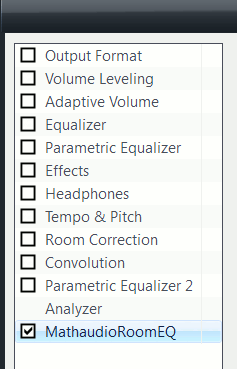
2.9. Open JRiver Media Center and go to Player > DSP Studio.. > Manage Plug-ins > Add JRiver, VST or Winamp plug-in (then select MathAudioRoomEQ.dll and click "Open"). After that select MathaudioRoomEQ in the left column of the "DSP Studio" window as it is shown below.
2.10. Click the "Load preset" button in the Room EQ window to load the .snr file.
2.11. Follow instructions 7..16 of the Room EQ Help manual.